Customer onboarding
Help-center videos that answer the ticket before it's filed.
Keep your voice. Review sensitive details, add numbered steps and highlights, and export a branded video and a written guide. Your recording is processed in your browser, never uploaded.
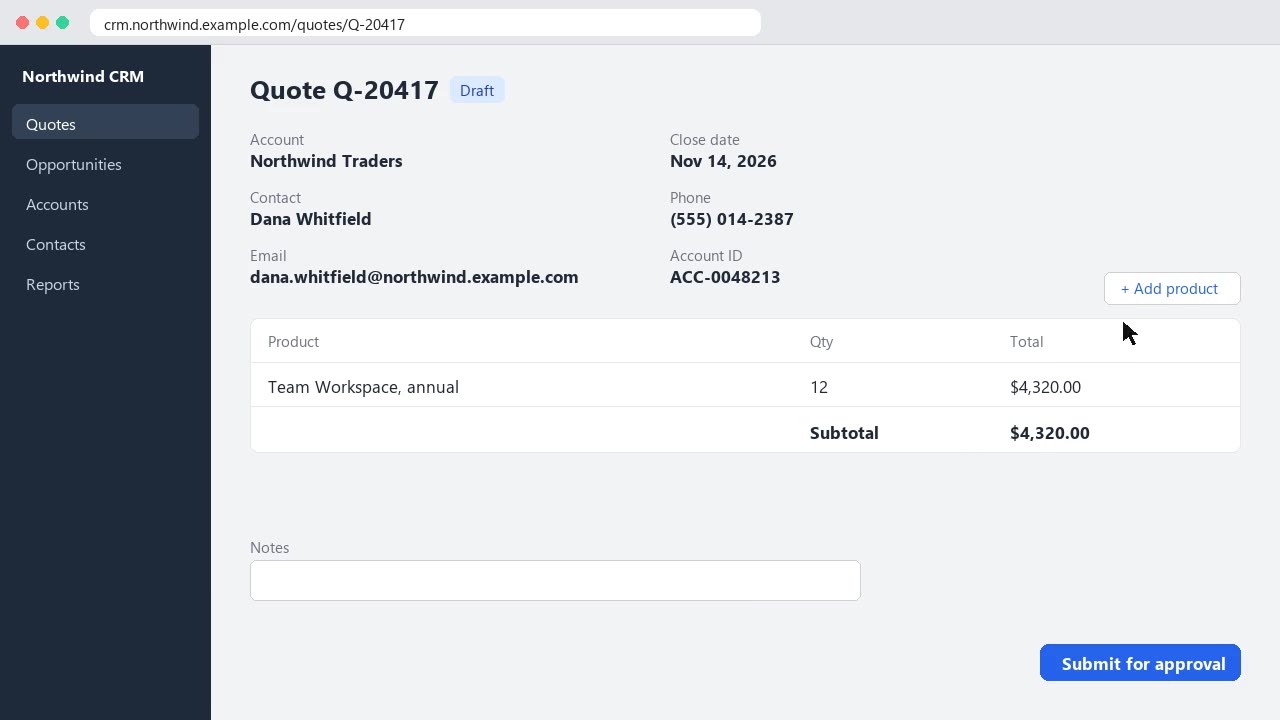
Free: every tool and finished videos up to 2 minutes. Optional AI works from text only, with detected details masked. Editing needs Chrome or Edge on a computer or tablet.A 21-second screen recording run through GlideClip as is: scanned at the Public level, with four step callouts added, and rendered in the browser.
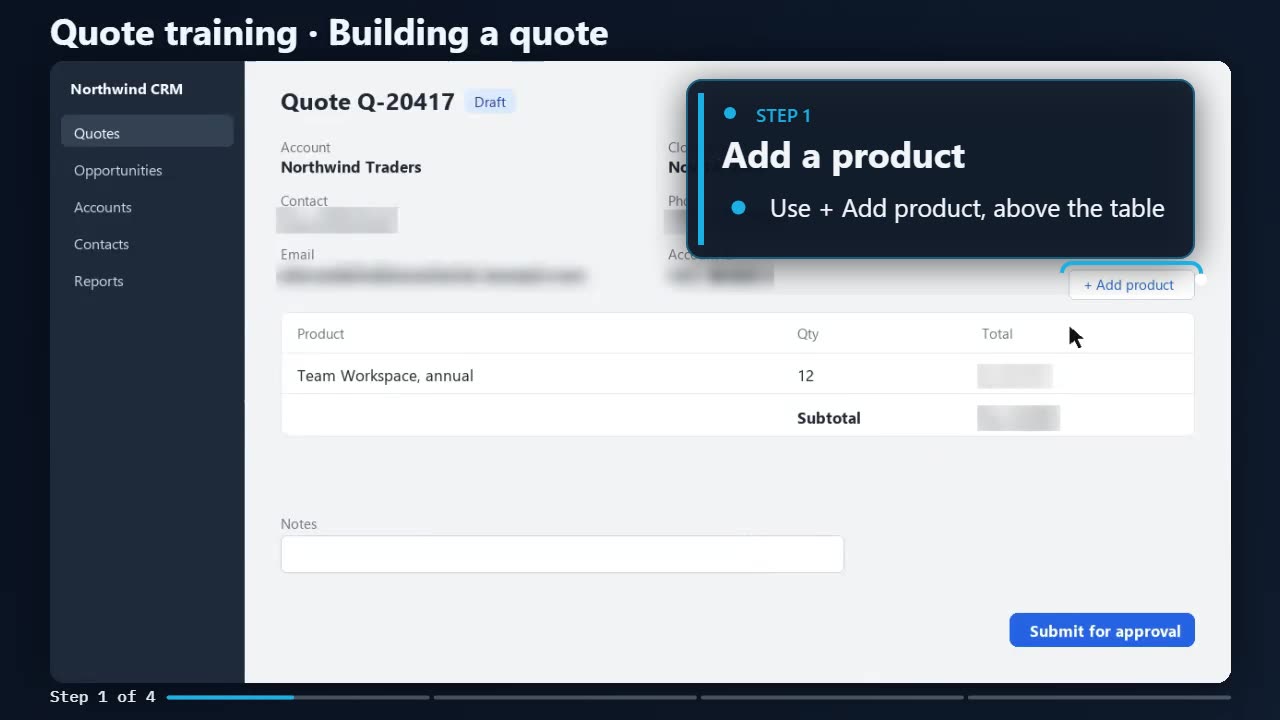
Invented data throughout. The scan found the web address, email, phone number, account ID, amounts and the two names we listed, including the one in the dark pop-up. Nothing was blurred by hand; the step callouts were written in the editor.
No keyframes, no layers, no export settings to look up. After the scan, What's Next lists what's left, and each step is one Do It click.
Record a window or your whole screen with your voice, right here. Join several clips, bring a video from any recorder, or open one from Google Drive or OneDrive.
Review the blur scan, cut the silent pauses, then guide viewers with numbered steps, highlights and captions. Remix your narration into a clean read, add your Brand Kit, and render widescreen, vertical or square.
Turn the steps into a written guide with a picture of each step, ready for your help center or wiki.
Viewers get lost when they can't tell what you just clicked or why. Callouts name each step on screen, at the moment it happens, so people can follow along at their own pace. GlideClip suggests them from what you said and where you clicked.
A numbered card that says what to do, with an optional hint line. Numbers update when you reorder or skip steps.
Ring the exact field or button and dim the rest of the screen, so the eye goes where it should.
"Step 2 of 4" along the bottom tells people how far along they are and how much is left.
Arrows, click ripples, labels, keyboard shortcuts and step numbers, for when a full card is too much.
GlideClip finds the mouse in your recording and draws a crisp one that glides smoothly to each click, with a ripple right on target. Zoom and Follow keep it in view on a phone.
Set your Brand Kit once on Home: logo, colors, fonts, frame, intro and outro. Every video wears it, so video 12 matches video 1 without you redoing a thing.
Logo, colors, fonts and frame, set once on Home.
Videos numbered in order; each outro names the next one.
Remix Narration tidies what you said; an AI voice reads it, in another language too, or in your own voice with Business.
Widescreen, vertical and square from one edit.
The steps you wrote for viewers become a written guide: each step with its summary, actions, a blurred picture and a link to that moment in the video. Put it in a help center, a wiki or your team's internal assistant.
The procedure in plain text, one heading per step.
One record per step: title, summary, start and end times in seconds, tags, and the questions and answers you add.
A picture for each step, blurred like the video, with its highlight drawn on if you like.
The redacted narration with timings, plus a record of where the video came from and how it was redacted.
{
  "step": 2,
  "title": "Add the Priority Support add-on",
  "summary": "Open Optional products and add Priority Support to the quote.",
  "start": 13.0, "end": 21.0,
  "picture": "screens/s2.png",
  "tags": ["quotes", "add-ons"],
  "qa": [{ "q": "How do I add an add-on to a quote?",
           "a": "Open Optional products and click Add." }]
}
GlideClip runs in your browser tab. There's no upload step, because there's nowhere for the video to go.
Text from the narration and screen goes to the AI to draft callouts and summaries, with detected emails, phone numbers, IDs and the names you list replaced by [REDACTED]. Check what's detected before you send it: you can blur more by hand.
Your account, plan and saved settings, so they follow you between computers. Companies can host GlideClip on their own servers and use their own AI key. Privacy details
Blurring is visual. If a name or number is said aloud, it stays in the narration: trim that part or record it again. And check every blur before you share: the scan can miss small or fast-moving text.
Software trainer or implementation consultant? See how GlideClip fits your client work.
Help-center videos that answer the ticket before it's filed.
Process videos for new hires, ready for your LMS.
Consistent, branded lessons across a whole course.
Feature walkthroughs prospects can watch on their own time.
Step guides, pictures and captions your help center or internal assistant can answer from.
Blurring, the safe copy and finished videos up to 2 minutes are free. Try every callout, frame and intro on your own recording before you spend anything. Pro adds videos of any length without the mark, AI suggestions, and Codify's written guides. Business adds shared customer setups, your own look and Codify's data formats, for $44 a person.
| Free | Pro | Business | |
|---|---|---|---|
| Price | Free | $26 a month, or $192 a year | $44 a person a month, or $34 billed yearly |
| Every editing tool and preview | ✓ | ✓ | ✓ |
| Blurred safe-copy export | ✓ with a small mark | ✓ no mark | ✓ no mark |
| Finished video (MP4: 16:9, 9:16 or 1:1) | Up to 2 minutes, with a mark | Any length, no mark | Any length, no mark |
| Callout suggestions made on your computer | ✓ | ✓ | ✓ |
| Captions from your narration, made on your computer | ✓ | ✓ | ✓ |
| Silent pauses cut, markers, Zoom and Follow | ✓ | ✓ | ✓ |
| Clean, gliding pointer | In the preview | ✓ in the finished video | ✓ in the finished video |
| AI-drafted callouts and step summaries | – | ✓ 600 AI credits a month | ✓ 1,500 AI credits a month per person |
| Remix Narration and AI voices | – | ✓ | ✓ |
| AI narration in your own voice | – | – | ✓ |
| Brand Kit and series kept with your account, on any computer | This browser | ✓ | ✓ a Brand Kit for each client |
| The Designer: your own look for callouts, intros and outros | – | ✓ | ✓ templates shared with your team |
| Codify: written guide with a picture of each step | – | ✓ | ✓ |
| Codify's data formats: knowledge-bot bundle, spreadsheet, Q&A pairs, series datasets | – | – | ✓ |
| Shared library: Labels, Brand Kits, series and Tag Sets | – | – | ✓ |
| Google Drive and OneDrive | – | – | ✓ |
| One bill for the team, or each person pays their own seat | – | – | ✓ |
From your narration and the text on screen. GlideClip reads the screen and transcribes your voice on your own computer, then suggests numbered steps and highlights. On Pro, AI can draft them instead; it only sees text, with detected emails, phone numbers, IDs and the names you list replaced by [REDACTED]. You review every suggestion: keep it, edit it or skip it.
No. You can record your screen right in GlideClip, with your microphone, in Chrome or Edge; the recording is saved on your computer as it goes and opens straight in the editor. Or bring a recording from whatever you already use: any video your browser can play, usually MP4 or WebM.
GlideClip evens out the volume so quiet and loud parts sound alike. It doesn't re-record or rewrite what you said.
No. Transcription, editing and rendering happen in your browser tab. If you turn on AI suggestions, only text is sent, with detected sensitive details redacted first.
Turning the video into files other tools can use: a written guide, one record per step with its timestamps, a blurred picture of each step and the redacted captions. Help centers, wikis and internal AI assistants can load them. The export is part of Pro.
Because the work happens on your own device, you need a current version of Chrome or Edge on a laptop, desktop or tablet.
On a recommended machine, a 5-minute 1080p video renders in about 3 minutes. Tablets get the full editor; on a phone you can set up your brand, blur rules and series, and send yourself the link for later.